The most common mistake with an AWS billing alert is expecting it to stop the spending. It won’t: the alert emails you, and the instance or database keeps running until you turn it off.
What to set up: a zero spend budget, or a monthly cost budget with 80% actual and 100% forecasted alerts, plus a verified email. It’s free; for service prices, see our guide to how much AWS costs.
Both budgets live under Billing and Cost Management > Budgets, and the whole setup below takes about ten minutes.
On the Free plan, offered to new accounts since the July 2025 Free Tier change, AWS can’t charge you at all.
A budget still matters the day you upgrade, and our page on AWS free credits explains how the $100 sign-up credit and the extra activity credits work.
Last checked against the AWS docs on November 23, 2026.
Which alert catches which mistake
| Alert | What it catches | How fast | Cost |
|---|---|---|---|
| Zero spend budget | The first charge past Free Tier limits, like a test instance you forgot | Next AWS Budgets refresh (up to 3 a day) | Free |
| Monthly cost budget, actual alert at 80% | Slow creep toward the number you can afford | Up to 3 refreshes a day; fires once per budget period | Free |
| Forecasted alert at 100% | A month that is on track to overshoot, before it does | Only after about 5 weeks of usage data | Free |
| AWS Free Tier usage alerts | One service passing 85% of its Free Tier limit | Email at 85%, before charges start | Included; on by default for individual accounts |
| AWS Cost Anomaly Detection | A sudden spike that doesn’t match your usual pattern, such as leaked keys or a runaway job | Up to 24 hours; needs 10 days of history | Free |
| CloudWatch billing alarm | Total estimated charges crossing a dollar line | Data arrives several times a day; 6-hour period | 10 alarm metrics free, then $0.10 per alarm metric a month |
This post contains affiliate links. As an Amazon Associate, Stepstocloud.com earns from qualifying purchases.
One thing no alert can fix is someone else signing in as you, so lock the root user first: a hardware key such as the YubiKey 5 NFC security key makes root-user MFA need something physical in your hand.

Set up every AWS billing alert in 10 minutes
Each layer below covers a different way a bill gets away from you: a resource left running, a slow monthly creep, a sudden spike, or an alert that reaches nobody.
- Turn on MFA for the root user (a security key or an authenticator app).
- Create a zero spend budget if you expect to pay nothing, or a monthly cost budget if you expect a small bill.
- Give the monthly budget two alerts: 80% actual and 100% forecasted.
- Add a second email address, then verify both within 12 hours.
- Check that Free Tier alerts are on and going to an inbox you read.
- Confirm a Cost Anomaly Detection monitor exists.
- Optional: a CloudWatch billing alarm in us-east-1 as a second opinion.
- Optional: a budget action, or a spend limit if your account has that feature.

New to the console layout? Our walkthrough of the AWS Management Console shows where the search bar and account menu sit. Type “Budgets” in the search bar to jump straight there.
Signed in as an IAM user and Billing says access denied? IAM users can’t open billing pages by default.
The root user has to turn on IAM User and Role Access to Billing Information under Account, then you attach the AWS managed Billing policy. Our introduction to AWS IAM covers attaching policies.
Create an AWS zero spend budget
The zero spend template emails you once your spending goes past AWS Free Tier limits. It’s the right first alert for a learning account, and the template fits on one page.
- Open
Billing and Cost Management > Budgets > Create budget. - Under Budget setup, choose Use a template (simplified), then pick Zero spend budget.
- Name it (for example
zero-spend-alert), enter one or more email addresses, and choose Create budget. - Open the verification email, click the link and sign in to the same account. The recipient should then show Active.
Running on credits? Check the credits setting before trusting a $0 reading. Credits count against your costs by default, so a budget can sit at zero while the credit balance drains.
Create a monthly AWS budget alert with actual and forecasted thresholds
If you already pay something each month, a zero spend budget would fire every month and you’d learn to ignore it. Set a real number instead, with two thresholds that warn at different times.
- Go to
Budgets > Create budget > Customize (advanced) > Cost budgetand choose Next. - Name the budget. Set Period to Monthly, renewal to Recurring, method to Fixed, and enter the amount, such as 20.00 USD.
- If credits pay most of your bill, open Advanced options and make sure credits aren’t netted out, so the budget shows gross spend.
- Add an alert threshold: 80% of the budgeted amount, trigger Actual. On a $20 budget that fires at $16.
- Add a second threshold: 100%, trigger Forecasted. Add a 50% actual alert too if you like early warnings.
- Enter up to 10 email addresses and, if you use one, an SNS topic ARN. Choose Next, skip actions for now, then Create budget.
Why both triggers? The actual alert fires only once per budget period, after the money is spent. The forecasted one can warn mid-month that you’re heading over, though AWS needs about 5 weeks of usage data before forecasts work.
A budget can hold up to five alerts, each with 10 email addresses and one SNS topic.
Times run in UTC, so a “monthly” budget resets at midnight UTC on the 1st, which is the afternoon of the day before on the US West Coast.
Verify every email recipient
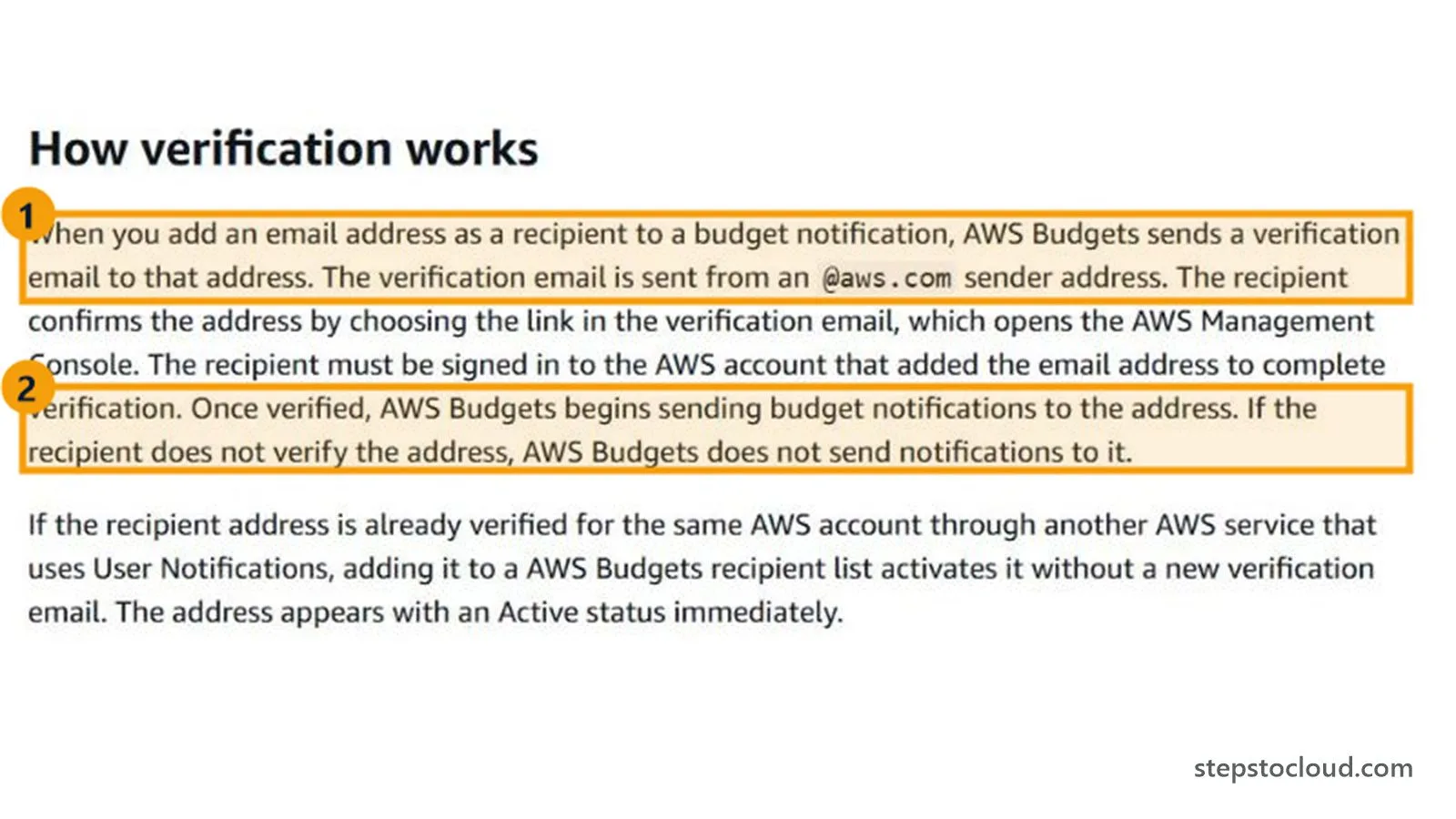
AWS Budgets now checks every new email address before sending to it. The verification email comes from an @aws.com address, and the person who clicks the link must sign in to the same AWS account that added them.
Move quickly: verification links expire after 12 hours. One verification per address covers every budget in that account, and addresses added before the change keep working with the status Active (legacy).
Turn on AWS Free Tier usage alerts
AWS emails you automatically when a service passes 85% of its Free Tier limit. A zero spend budget tracks the full 100%, so the two make a two-step warning.
The alerts are on by default for individual accounts. Management accounts in AWS Organizations have to opt in. Either way, they go to the root user’s email unless you change it.
To check, open Billing and Cost Management > Billing preferences > Alert preferences > Edit. Tick Receive AWS Free Tier alerts, put in an inbox you actually read, and save.
Add a CloudWatch billing alarm in us-east-1
A CloudWatch billing alarm watches one number, your estimated total charges, and doesn’t depend on AWS Budgets. That makes it a decent backup if a budget is misconfigured. It needs one setting first.
- In
Billing preferences > Alert preferences > Edit, tick Receive CloudWatch Billing Alerts and save. You can’t turn data collection off again later, and the data takes about 15 minutes to appear. - Switch the Region selector to US East (N. Virginia).
- Open
CloudWatch > Alarms > All alarms > Create alarm > Select metric > Billing > Total Estimated Chargeand pick EstimatedCharges (Currency USD). - Set Statistic to Maximum, Period to 6 hours, threshold type Static, Greater than 20. Use 1 out of 1 datapoints and treat missing data as missing.
- Under Notification, pick or create an SNS topic with your email, name the alarm and create it. Then confirm the SNS email.
Don’t skip the Region step. Billing data is stored in US East (N. Virginia) and covers worldwide charges, even if everything you run sits in London (eu-west-2), Canada Central (ca-central-1) or Sydney (ap-southeast-2).
The metric reports in USD only and shows current charges with no projection. If you’re already past the threshold, the alarm goes to ALARM straight away.
If SNS topics are new to you, our guide to what Amazon SNS is explains topics and subscriptions.

Turn on AWS Cost Anomaly Detection
Budgets miss spikes that stay under your number. AWS Cost Anomaly Detection learns what normal looks like and flags the odd day, at no extra cost. It runs about three times a day.
Since March 27, 2023, AWS has given new Cost Explorer users an AWS services monitor with a daily email.
That default only alerts when spend is over $100 and more than 40% above expected, which is high for a hobby account.
- Open
Billing and Cost Management > Cost Anomaly Detection > Cost monitorsand look for the AWS services monitor. - If it’s missing, choose Create monitor, then Managed by AWS and AWS services.
- Add an alert subscription with Daily summaries and an absolute threshold that suits you, such as $10.
Individual alerts need an SNS topic, while daily summaries go out at 00:00 UTC by email. Expect a lag: detection can take up to 24 hours, and a monitor needs 10 days of history.
Like every alert on this page, an anomaly alert only notifies. Nothing gets stopped.
Set up the same alerts from the AWS CLI
Doing this for several accounts? The CLI repeats it in seconds. You need CLI v2 (our guide to installing the AWS CLI on Mac and Windows covers it) and the 12-digit account ID. Save this as budget.json:
{
  "BudgetName": "monthly-cost-20-usd",
  "BudgetLimit": {
    "Amount": "20",
    "Unit": "USD"
  },
  "BudgetType": "COST",
  "TimeUnit": "MONTHLY"
}
Credit users can add "CostTypes": { "IncludeCredit": false } so the budget counts spend before credits. The IncludeCredit default is true. Don’t combine CostTypes with Metrics or FilterExpression in the same file. Then save the two alerts as notifications.json:
[
  {
    "Notification": {
      "NotificationType": "ACTUAL",
      "ComparisonOperator": "GREATER_THAN",
      "Threshold": 80,
      "ThresholdType": "PERCENTAGE"
    },
    "Subscribers": [
      { "SubscriptionType": "EMAIL", "Address": "you@example.com" }
    ]
  },
  {
    "Notification": {
      "NotificationType": "FORECASTED",
      "ComparisonOperator": "GREATER_THAN",
      "Threshold": 100,
      "ThresholdType": "PERCENTAGE"
    },
    "Subscribers": [
      { "SubscriptionType": "EMAIL", "Address": "you@example.com" }
    ]
  }
]
aws budgets create-budget \
--account-id 111122223333 \
--budget file://budget.json \
--notifications-with-subscribers file://notifications.json
aws budgets describe-budgets --account-id 111122223333A successful create-budget prints nothing. The email address still has to verify through the link AWS sends. On PowerShell, swap each trailing \ for a backtick or put the command on one line.
The CloudWatch billing alarm takes three commands, all in us-east-1. You still have to enable billing alerts in the console first, because the CLI can’t switch that preference on.
aws sns create-topic --name billing-alarm --region us-east-1

aws sns subscribe \
    --topic-arn arn:aws:sns:us-east-1:111122223333:billing-alarm \
    --protocol email \
    --notification-endpoint you@example.com \
    --region us-east-1

aws cloudwatch put-metric-alarm \
    --alarm-name billing-over-20-usd \
    --alarm-description "Estimated charges above 20 USD" \
    --namespace AWS/Billing \
    --metric-name EstimatedCharges \
    --dimensions Name=Currency,Value=USD \
    --statistic Maximum \
    --period 21600 \
    --evaluation-periods 1 \
    --threshold 20 \
    --comparison-operator GreaterThanThreshold \
    --treat-missing-data missing \
    --alarm-actions arn:aws:sns:us-east-1:111122223333:billing-alarm \
    --region us-east-1
The period of 21600 seconds is the same 6 hours as the console version. A new alarm starts in INSUFFICIENT_DATA, which is normal until the first data point arrives.
Make an alert stop something with budget actions
If you want AWS to react rather than just email, add a budget action to an alert. It needs an IAM role that AWS Budgets can use, and it can run automatically or wait for your approval in Alert details.
What a budget action can do:
- Apply an IAM policy, for example one that denies launching new instances.
- Attach a service control policy, from the management account in AWS Organizations only.
- Stop specific Amazon EC2 or Amazon RDS instances you pick in advance.
What it can’t do: delete anything, or stop resources outside those EC2 and RDS targets. Data in Amazon S3 and other services keeps billing.
An instance in an Auto Scaling group simply comes back unless a second action removes the permissions.
Actions trigger from budget alerts, so they inherit the same delay and react hours after the spend. The first two action-enabled budgets are free each month; after that, each one costs $0.10 a day.
AWS is also rolling out spend limits in its new sign-up experience, for new customers on the Paid plan only.
You set a monthly ceiling per project ($20 or more), and AWS pauses the project when it reaches its spend limit.
Paused data is kept, but a project left untouched for 90 days after that is permanently deleted. Older accounts don’t get this feature, so budgets and actions remain the tools for them.
Fix an AWS billing alert email that never arrives
Work down this table in order. The first rows are the most common causes and the quickest to check.
| Symptom | Likely cause | Fix |
|---|---|---|
| Recipient status shows Pending | The address was never verified | Choose Resend verification, click the link within 12 hours and sign in to the same account |
| No verification email at all | Spam folder or a mail filter caught the @aws.com sender | Check spam, allow the sender, then resend |
| Still Pending after clicking the link | An IAM policy or SCP denies the notifications-contacts actions | Allow CreateEmailContact, SendActivationCode, ListEmailContacts and ActivateEmailContact |
| Email works but SNS alerts are silent | Subscription stuck in PendingConfirmation (tokens last two days) | SNS console, Subscriptions, filter “budget”, Request confirmation |
| “Invalid SNS topic” when saving | Topic policy doesn’t let budgets.amazonaws.com publish, or the topic is encrypted | Add the SNS:Publish permission, or grant KMS access |
| Budget shows $0 while credits drain | IncludeCredit defaults to true | Exclude credits in the budget’s advanced options or the CLI |
| Forecasted alert never fires | Less than about 5 weeks of usage data | Rely on actual alerts until the forecast appears |
| One actual alert, then nothing | Actual alerts fire once per budget period | Add a second actual threshold, such as 100% |
| Alert arrived hours late | Budget data updates up to 3 times a day, 8 to 12 hours apart | Set thresholds lower than the amount you’d panic at |
| No Billing metric in CloudWatch | Wrong Region, or billing alerts not enabled | Switch to us-east-1, enable the preference, wait about 15 minutes |
| Free Tier alerts go to an old inbox | They default to the root user’s email | Change the address in Alert preferences |
The delay row deserves a second look. AWS Budgets warns that you might go past a threshold before it can notify you, so a $20 alert on a busy account can land when the real figure is already higher.


Hardware security key (YubiKey 5 NFC)
A FIDO security key for root-user MFA, so the login that controls billing and account settings needs the physical key.
Check price on AmazonFrequently asked questions
Do AWS billing alerts cost money?
Monitoring and notifications in AWS Budgets are free. Your first two action-enabled budgets are also free each month, then each extra one costs $0.10 a day. Cost Anomaly Detection is free. CloudWatch includes 10 alarm metrics in its free tier, then charges $0.10 per alarm metric per month.
Does an AWS budget stop charges?
No. A budget alert, Free Tier alert, anomaly alert or CloudWatch alarm only sends a notification, and your resources keep running. To make AWS react, add a budget action that applies an IAM policy or SCP, or stops chosen EC2 or RDS instances. Newer Paid-plan accounts may also get spend limits, which pause a project.
What is an AWS zero spend budget?
It is a ready-made template in AWS Budgets that emails you once your spending goes past AWS Free Tier limits. You create it under Budgets, Create budget, Use a template (simplified), then enter a name and email address. It suits learning accounts that should cost nothing.
Why didn’t I get my AWS budget alert email?
The usual cause is an unverified recipient. AWS Budgets sends a verification link from an @aws.com address that expires after 12 hours, and the recipient must sign in to the same account. Also check spam, unconfirmed SNS subscriptions, credits keeping the budget at zero, and forecasts that need about 5 weeks of data.
How often does AWS Budgets update?
AWS Budgets data is updated up to three times a day, usually 8 to 12 hours apart, so alerts are never real time. CloudWatch billing data also arrives several times a day, and Cost Anomaly Detection can take up to 24 hours to spot a spike. Set thresholds lower than the amount that would hurt.
Why can’t I see the Billing metric in CloudWatch?
Billing metrics are stored only in the US East (N. Virginia) Region, us-east-1, so switch the Region selector there. You also need to turn on Receive CloudWatch Billing Alerts in Billing preferences first and wait about 15 minutes for the data to appear.
Conclusion
An AWS billing alert is a smoke detector, not a sprinkler. Set up the cheap layers today, make sure the emails actually reach you, and decide in advance what you’ll switch off when one fires.
And if an account was only ever for practice, closing it when you’re done beats watching alerts on it.
- Alerts only notify; budget actions or spend limits are what stop things.
- Start with a zero spend budget, or a monthly budget with 80% actual and 100% forecasted alerts.
- Verify every recipient within 12 hours, and confirm SNS subscriptions.
- The CloudWatch billing alarm works only in us-east-1, after you enable billing alerts.
- All of it runs on delayed data, so set thresholds below the number that would hurt.
Recommended reading
- What is AWS? A plain guide to Amazon Web Services
- How to delete (close) your AWS account
- How to reactivate a suspended AWS account
- AWS Cloud Practitioner study plan: pass CLF-C02 in 4 weeks

I am an Amazon Web Services Professional, having more than 11 years of experience in AWS and other technologies. Extensively working in various AWS tools like S3, Lambda, API, Kinesis, Load Balancers, EKS, ECS, and many more. Working as a Solution Architect and Technology Lead for Architecting and implementing the same for different clients. He provides expert solutions around the world and especially in countries like the United States, Canada, United Kingdom, Australia, New Zealand, etc. Check out the complete profile on About us.
1 thought on “How to Set Up AWS Billing Alerts and Budgets (Step by Step)”